E-book Creation
This article will introduce how to use Pandoc to export Markdown files and create e-book covers and author information using Sigil. Here are the detailed steps:
1. Export Markdown files using Pandoc 🔗︎
Before creating an e-book, you first need to prepare the content files. We recommend using Pandoc to convert documents to Markdown format.
Common command examples 🔗︎
pandoc input.docx -o output.md
input.docx: The input document file (can be Word, HTML, etc.).output.md: The output Markdown file.
After conversion with Pandoc, you will obtain a standard Markdown file, which serves as the foundation for subsequent e-book creation.
2. Using Sigil to create the cover and author information 🔗︎
2.1 Set Sigil’s language to Chinese 🔗︎
To make operation more convenient, you can set Sigil’s interface language to Chinese:
- Open Sigil.
- Click on “Preferences” in the menu bar.
- Select “Chinese” in the language options, then restart Sigil.
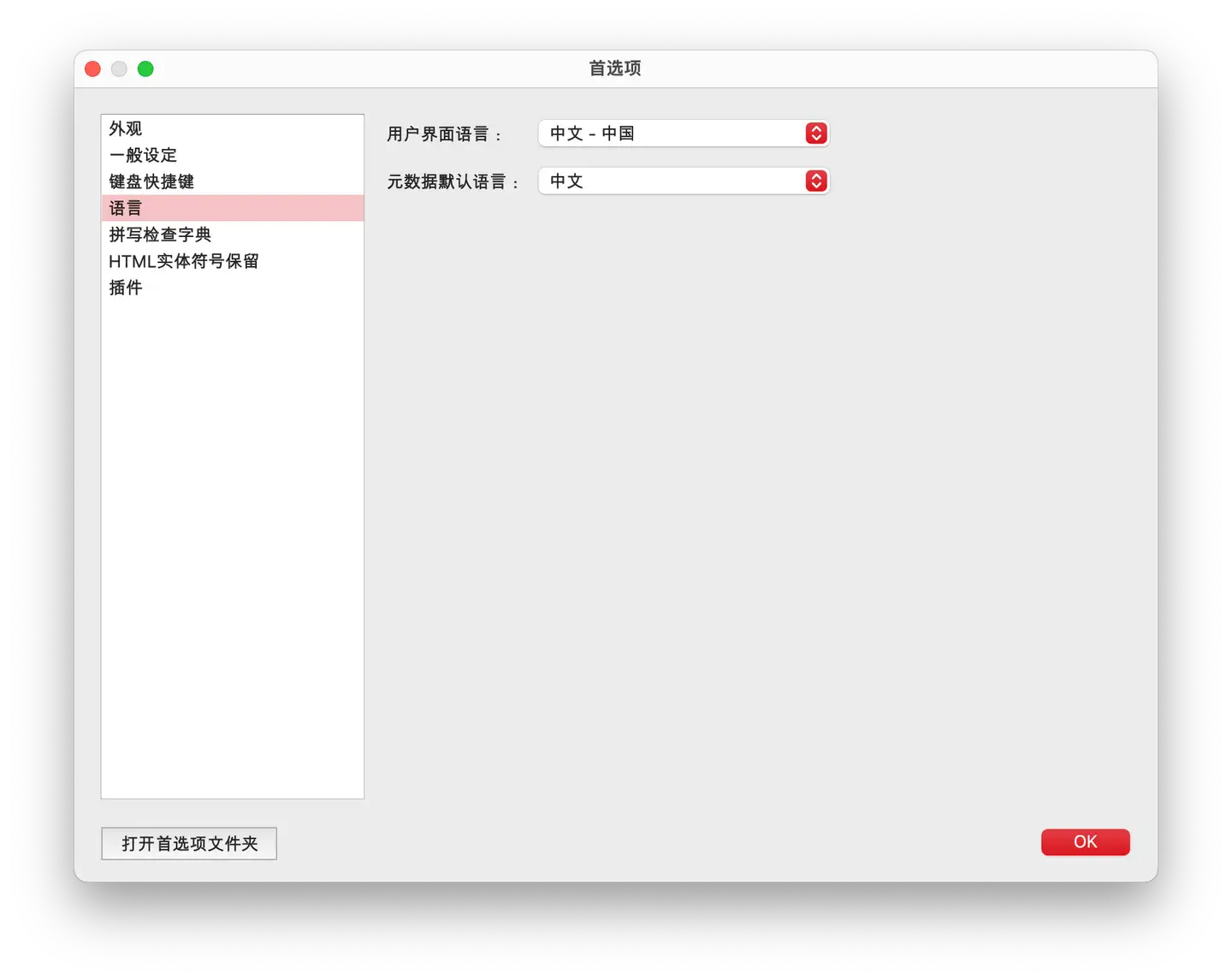
2.2 Edit metadata (author, title, etc.) 🔗︎
- Click “Tools” in the menu bar and select “Metadata Editor.”
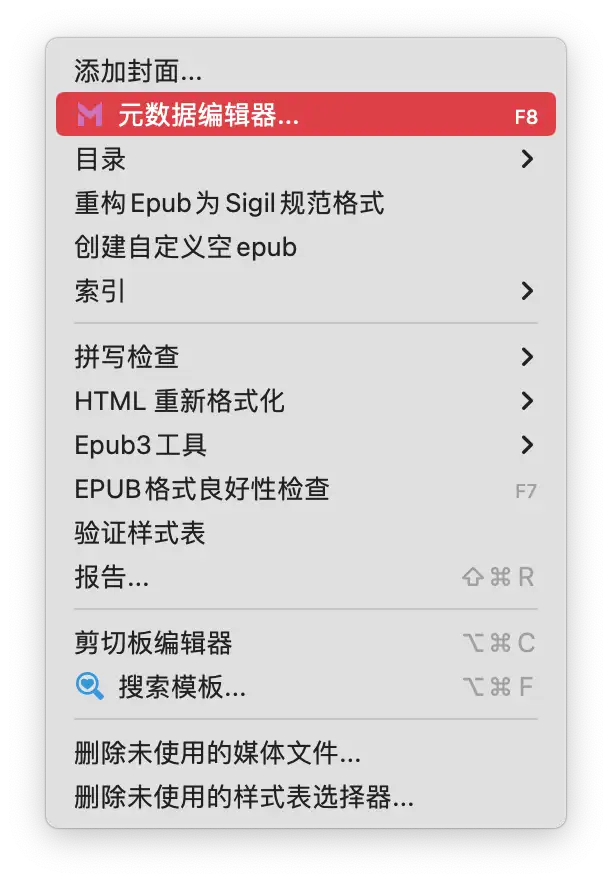
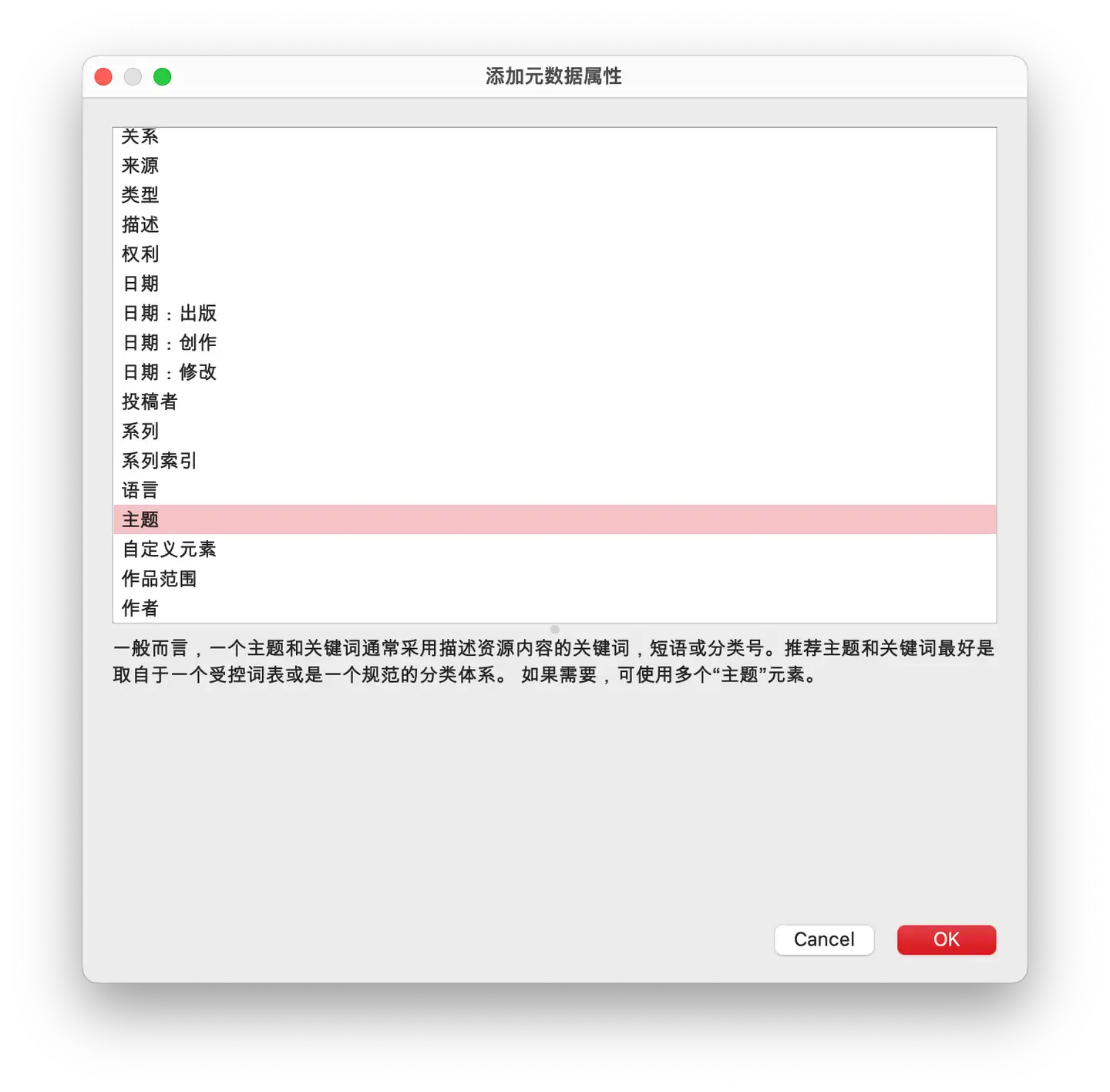
In the metadata editor interface, click the “Add Metadata” button on the right and fill in the following information:
- Title: The name of the e-book.
- Author: Your name or pen name.
- Other optional information (such as description, publication date, etc.).

Example result:
2.3 Add a cover image 🔗︎
In the file browser on the left, select the “Image” folder.
Click the green “+” sign in the upper left corner to import the cover image you have prepared.
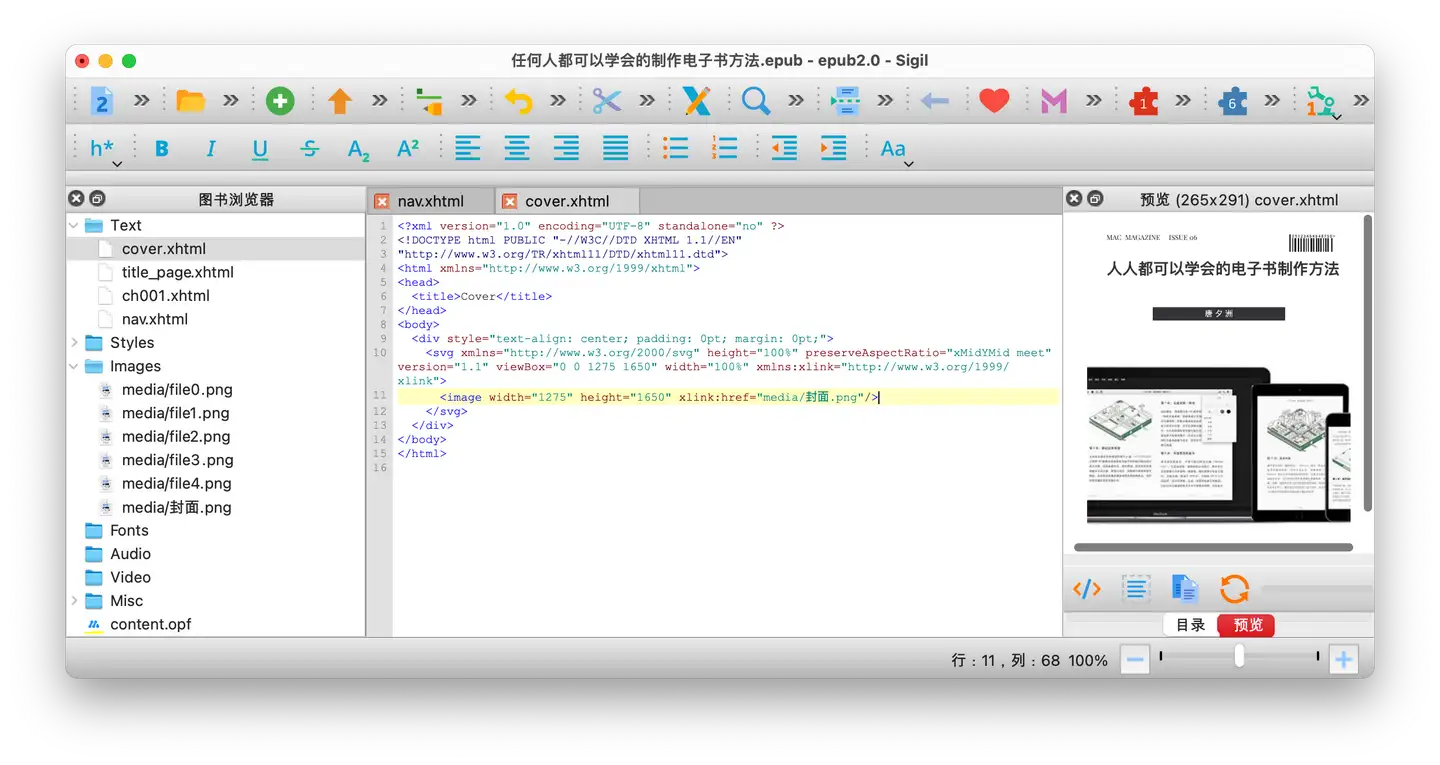
Click “Tools” in the menu bar and select “Add Cover.”
In the pop-up window, select the cover image you just imported.
2.4 Preview the cover effect 🔗︎
After completing the above steps, you can view the cover effect in the preview interface on the right.
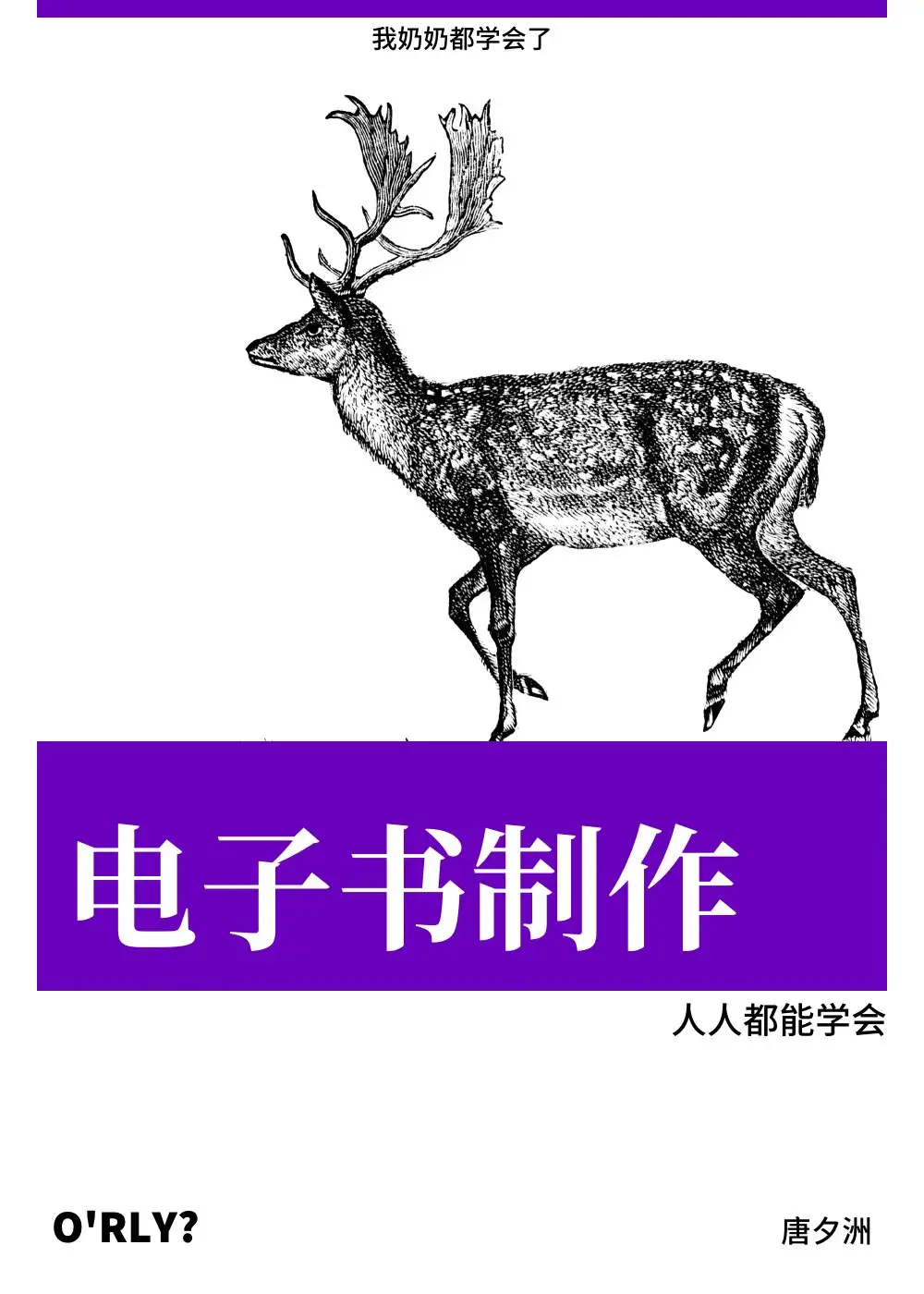
If you don’t have a cover design yet, you can use the following online tools to quickly generate one:
3. Save and test the e-book 🔗︎
- Press
Cmd + S(Mac) orCtrl + S(Windows) to save the project. - Drag the generated e-book file into Apple’s “Books” app or another reader to test it.
Summary 🔗︎
Following the steps above, you can easily create an e-book with a cover and author information using Pandoc and Sigil. Here’s a recap of the key points:
- Use Pandoc to convert the document to Markdown format.
- Set metadata (title, author, etc.) in Sigil.
- Add a cover image and preview the effect.
- Finally, save and test the e-book.
New articles on AI agents, full-stack engineering, and a one-person company
I email new writing about AI and agents, full-stack engineering, and building a one-person company. No spam, and you can unsubscribe anytime.